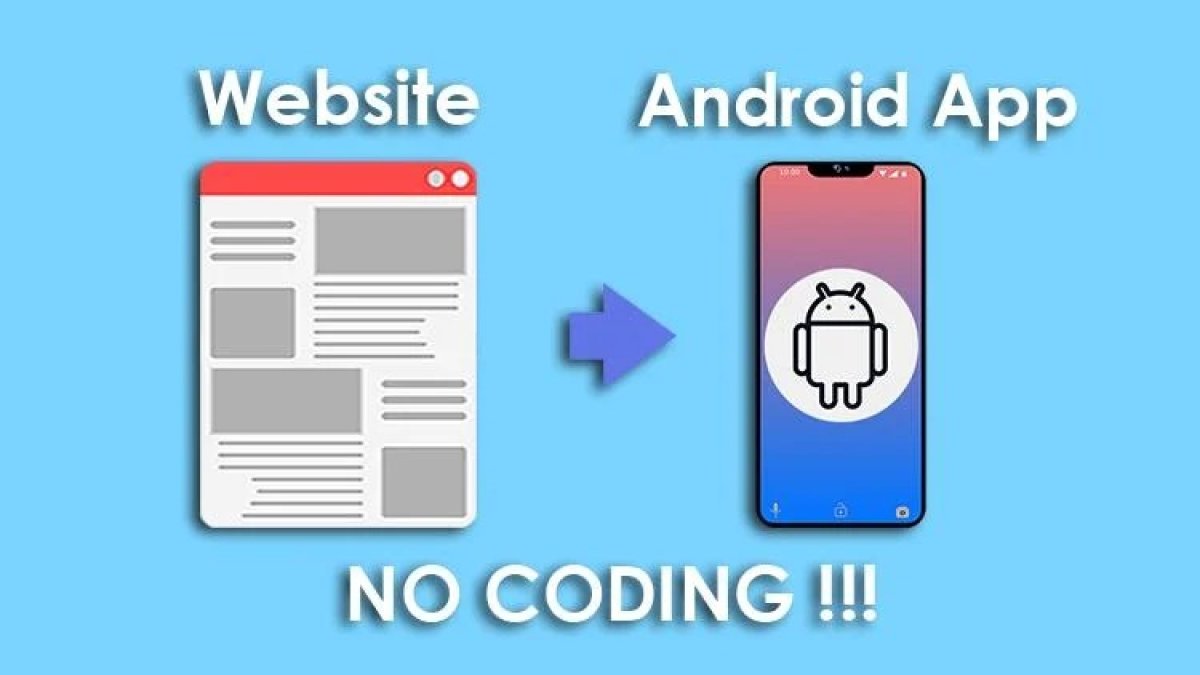
How to easily convert a Web application into a native Android application
How to easily convert a Web application into a native Android application
In today’s digital landscape, bridging the gap between web and mobile apps is increasingly valuable. Many developers want to package a web application inside a native Android wrapper, allowing users to benefit from both web content and native functionality. One excellent resource to achieve this quickly and efficiently is the website-to-apk GitHub repository by Jipok. This repository offers a simple toolset to convert any website into an Android APK with minimal effort.
In this detailed tutorial, we will walk you through the entire process of creating a native Android application that hosts your web application using this repository. We will cover prerequisites, setup, customization, and building the final APK step-by-step. By the end, you will be able to package your URL-based web app into a fully functional Android app that you can distribute or test on your device.
Prerequisites
- A basic understanding of Android app structure.
- Git installed on your computer (to clone the repository).
- Android Studio installed, preferably the latest stable version.
- An active internet connection for downloading dependencies.
- A URL of the web application you want to convert.
Step 1: Clone the Repository
Start by cloning the website-to-apk repository from GitHub to your local machine. Open a terminal or command prompt and run the following command:
git clone https://github.com/Jipok/website-to-apk.gitThis command will download all the necessary project files into a folder named website-to-apk.
Step 2: Open the Project in Android Studio
- Launch Android Studio on your computer.
- Click on Open an Existing Project.
- Navigate to the folder where you cloned website-to-apk, select it, and click OK.
- Allow Android Studio to sync and download all required dependencies automatically. This might take a few minutes.
If you encounter any Gradle sync errors, double-check that your Android Studio is updated and that your SDK tools are installed properly.
Step 3: Understand the Project Structure
Before making any changes, it’s important to understand the key parts of this project:
- app/src/main/java – Contains the Java source code. The main activity is a simple WebView that loads your URL.
- app/src/main/res/layout – Contains the XML layout files defining the UI. The primary layout hosts the WebView element.
- app/build.gradle – Defines app dependencies and configurations.
- AndroidManifest.xml – Declares app permissions and essential metadata.
Step 4: Configure the Web Application URL
The core feature of this project is the WebView which loads a specific URL. To use your own web application, you need to edit the URL in the code.
- Navigate to
app/src/main/java/com/jipok/websitetosapp/MainActivity.java(or similar path depending on code structure). - Locate the WebView initialization section, where the URL is loaded using
webView.loadUrl("YOUR_URL_HERE"). - Replace the placeholder URL with your target web application address. For example:
webView.loadUrl("https://yourwebapp.com");Make sure your URL starts with http:// or https:// and is accessible.
Step 5: Adjust Permissions for Internet Access
Since the app loads web content, it requires internet permission. Verify this in AndroidManifest.xml located under app/src/main/. Look for the following line:
If it’s not present, add it within the
Step 6: Customize App Name and Icon
You can personalize your Android app to better represent your web application.
- Change App Name: Open
app/src/main/res/values/strings.xmland set theapp_namestring to your preferred app name. - Change App Icon: Replace the icon files located in
app/src/main/res/mipmap-*folders. These include different sizes for launcher icons. Replace them with your own images keeping the same filenames or update the manifest accordingly.
Step 7: Build and Run Your Application
- Connect your Android device using USB debugging or launch an emulator from Android Studio.
- In Android Studio, click the Run button (green triangle) on the toolbar.
- Select your target device and wait for the app to build and deploy.
- Once installed, the app should launch automatically and load your web application inside the embedded WebView.
This step verifies that your basic wrapper works as expected.
Step 8: Generate a Signed APK for Distribution
To distribute your native app via Google Play Store or other methods, generate a signed APK or AAB (Android App Bundle).
- In Android Studio, go to Build > Generate Signed Bundle / APK.
- Choose APK or Android App Bundle depending on your distribution preferences.
- Create or select an existing signing key. Fill in the required information.
- Choose a build variant (usually release) and finish the process.
- Android Studio will generate the signed APK/App Bundle that you can upload or share.
Troubleshooting and Tips
- Web Content Compatibility: Some web apps may rely heavily on JavaScript or external libraries. Ensure the WebView supports your web app features by enabling JavaScript in the code if necessary.
- Offline Mode: This wrapper depends on internet access; offline capabilities will need additional coding beyond the scope of this repo.
- Performance: For large or heavyweight sites, performance inside the WebView may vary by device.
- Security: Avoid loading untrusted URLs to keep your app secure.
Conclusion
Using the website-to-apk GitHub repository, creating a native Android application that wraps a web application becomes a straightforward task, even for developers with limited Android experience. By following this step-by-step tutorial—from cloning the repo to customizing and building your APK—you can deliver your web app to Android users efficiently and with a native feel.
This approach saves development time compared to building fully native apps and offers an effective way to maintain a single web codebase while extending your reach onto mobile platforms. Experiment with this setup, customize it as needed, and enjoy the simplicity of integrating your web innovation into the Android ecosystem.